How to populate and maintain a dropdown list in an Alteryx Analytic App

1. The real problem: why dropdown lists break in production1. Why the traditional project Cycle no longer worksArtificial Intelligence has its own language. And it's evolving fast.
A true story. A management controller contacts me: their Analytic App deployed on Alteryx Server has stopped working. Diagnosis in three minutes: the "Select Entity" dropdown offers 12 options—but the company has acquired 3 new ones since the last workflow update. The result: an incomplete report, panic from the business side, and an emergency call.
This is not an isolated case. It is arguably one of the three most common mistakes I see among Alteryx users building Analytic Apps for production.
Why it breaks: because the list was hardcoded in the List Box tool configuration during development. The workflow has no way of knowing that a new entity exists. It will faithfully continue to display the 12 values from March 2024—even in 2026.
The "so what" for your organization
If you already have Analytic Apps in production with static dropdown lists, run an audit next week: how many are at risk of breaking the next time data is added? In my last 5 projects, the answer was consistently: at least two.
2. Two approaches — static or dynamic2. Our conviction: start with the business pain point, not the technology1. LLM (Large Language Model)
There are exactly two waystwo ways to populate a dropdown list in an Alteryx Analytic App. Understanding the difference between the two is the key to avoiding 80% of common pitfalls. There are exactly to populate a dropdown list in an Alteryx Analytic App. Understanding the difference between them helps you avoid 80% of common pitfalls.
2.1 Static dropdown list (manually entered values)2.1 Static dropdown list (manually entered values)
In this first scenario, the list of values is hard-codedhard-coded into the workflow and does not depend on any external or dynamic data source. In this first scenario, the list of values is into the workflow and does not depend on any external or dynamic data source.
When should you use it?When should you use it?
- - The list of values is short (fewer than 10-15 items)
- - The values are not expected to change
- - Simplicity takes precedence over flexibility (e.g., a fixed list of 4 sales regions, or a Yes / No / Maybe choice)
How it worksHow does it work?
You manually define the list items directly within the List BoxList Box tool configuration.
You manually define the list items directly within the tool configuration.
Limitations of this approachLimitations of this approach
If the list needs to be updated later, you must:
If the list needs to be updated later, you must:
- -Open the workflow in Alteryx Designer
- -Manually add or edit the values
- -Re-publish the application to Alteryx Server
-
This approach is not suitablenot suitable if the values change over time. It creates technical debt that, in practice, always ends up blowing up at the worst possible moment. This approach is if the values change over time. It creates maintenance debt that, in practice, always ends up blowing up at the worst possible moment.
2.2 Dynamic Dropdown List (Recommended)2.2 Dynamic dropdown list (recommended)
In this second scenario, the list is derived directly from the datadirectly from the data—meaning it updates automatically as soon as a new value appears at the source. In this second scenario, the list is derived — meaning it updates automatically as soon as a new value appears at the source.
This is the recommended approach for any Analytic App intended to stay in production for more than a few weeks. This is the recommended approach for any Analytic App intended to last more than a few weeks in production.
The "so what"The "so what"
A simple principle to keep in mind: if a list of values is subject to change, never hard-code it.if the list of values is subject to change, never hard-code it. The extra cost of a dynamic version is only 30 to 45 minutes of development time. It pays for itself the moment your data changes for the first time.
A simple principle to keep in mind: The extra cost of the dynamic version is 30 to 45 minutes of development time. It pays for itself the moment your data changes for the first time.
3. The method: two chained applications3. A six-step method, not six months2. Embeddings
The general ideaThe general idea: build a small preparation workflow that produces a column containing the allowed values, then use that column to populate the dropdown list. : build a small preparation workflow that produces a column containing the authorized values, then use that column to populate the dropdown list.
The preparation logic can live in two places: Preparation logic can live in two places:
- - In a separate workflowseparate workflow (recommended if the preparation is complex or shared between multiple Apps)
- - Within the first part of the same Analytic Appthe first part of the same Analytic App
-
For this example, I am choosing the most robust architecture: two chained Analytic Appstwo chained Analytic Apps. For this example, I am choosing the most robust architecture: .
- Application 1Application 1 : extracts sheet names from an Excel file and saves them as a YXDB
-
- Application 2Application 2 : reads the YXDB created by App 1 and uses it to populate the dropdown list, then filters the data
This architecture separates the preparationpreparation (App 1) from its usageusage (App 2). It is a robust, modular, and testable pattern—and much easier to scale than 300 lines in a single workflow. This architecture separates the (App 1) from its (App 2). It is a robust, modular, and testable pattern—and much easier to scale than 300 lines in a single workflow.
4. Application 1 — Extract Excel sheet names4. Prime AI Fast Development Kit: the engine that makes it possible3. RAG (Retrieval-Augmented Generation)
For illustration, I am using a travel.xlsx file that contains three sheets: DestinationsDestinations, BudgetBudget, and ScheduleSchedule. For illustration, I am using a travel.xlsx file that contains three sheets: , , and .
Step 1 — Allow the user to choose an Excel file at runtimeStep 1 — Allow the user to choose an Excel file at runtime
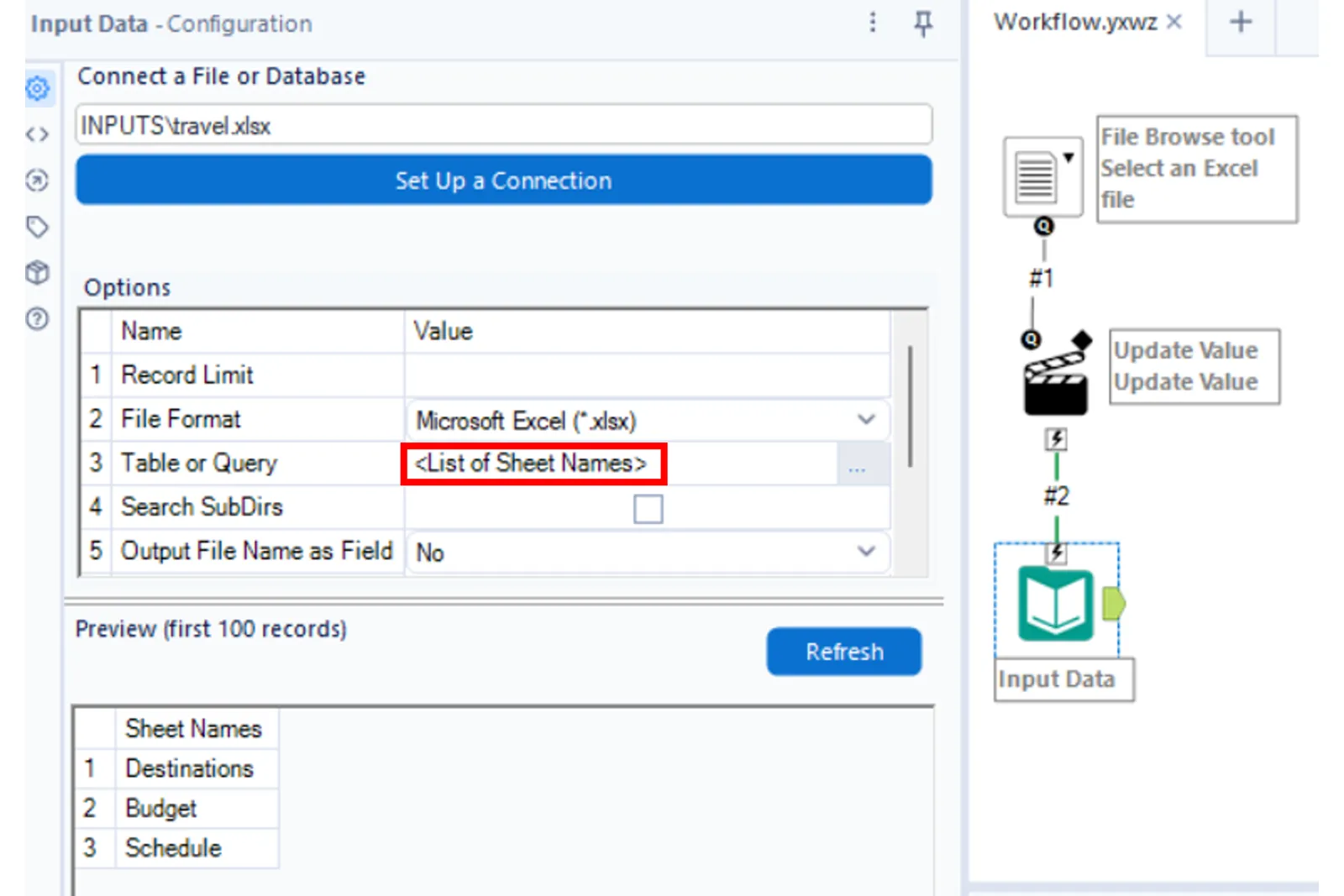
- - Add an File BrowseFile Browse tool to allow the user to select an Excel file at runtime
- - Connect the File Browse tool to an ActionAction, which is connected to an Input DataInput Data
- In the Input Data configuration, select the “List of Sheet Names”“List of Sheet Names” option - In the Input Data configuration, select the option
-
This configuration returns the list of sheet names from the selected Excel file as a single column.This configuration returns the list of sheet names from the selected Excel file as a single column.
Step 2 — Generate a Value columnStep 2 — Generate a Value column
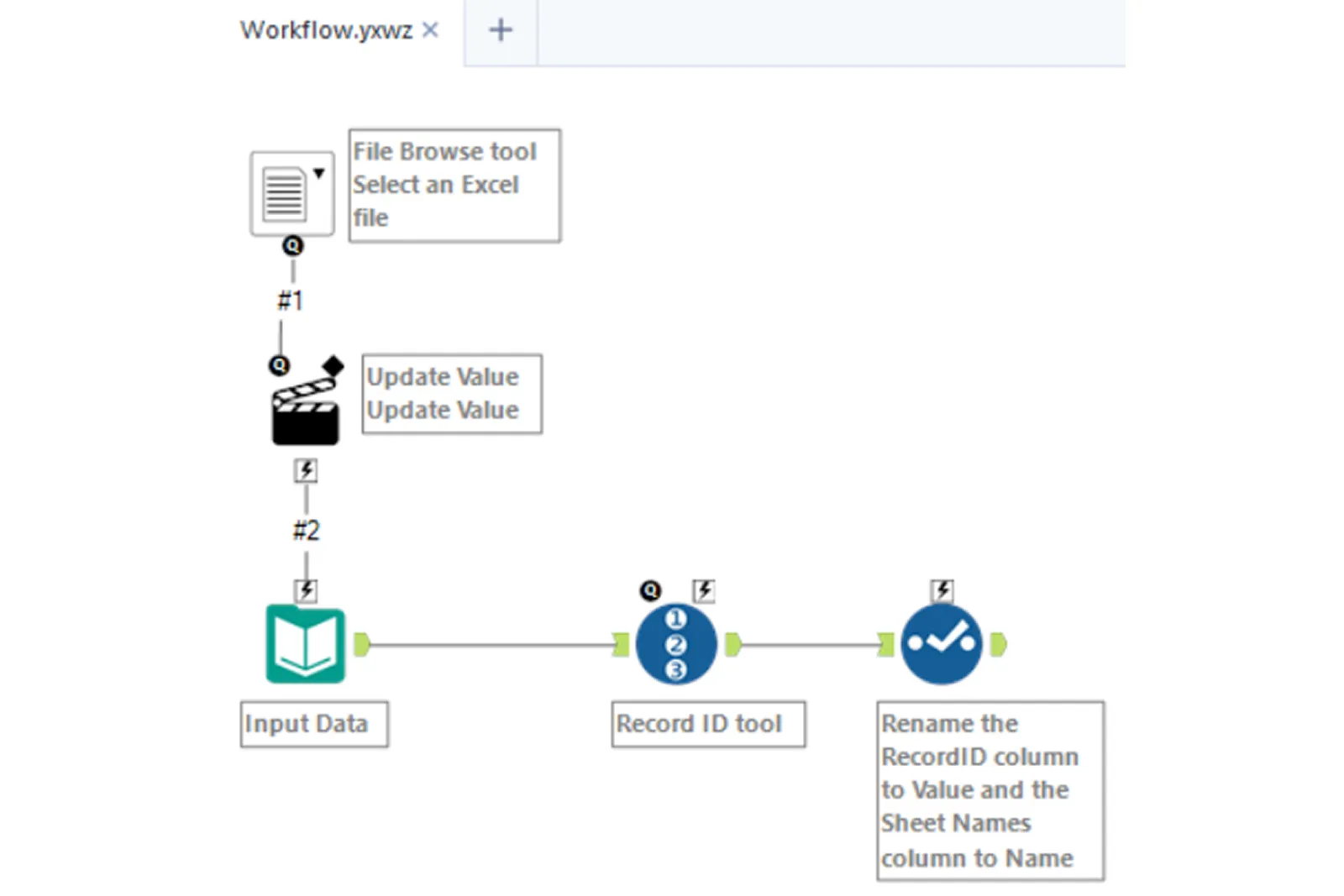
- - Add a Record IDRecord ID to the workflow
- - This tool creates a new column that assigns a unique identifier to each row
- - Rename this column to ValueValue
-
This Value field will be used later, internally, by the List Box tool to track user selections. This Value field will be used later, internally, by the List Box tool to track user selections.
Step 3 — Prepare the output structureStep 3 — Prepare the output structure
Add a SelectSelect tool to: Add a tool to:
- - Rename the "Sheet Names" column to NameName
- - Change the data type of the Value column to StringString
-
This step is essential: the List Box tool expects the external source to contain exactly two fields — Name and Value — both of which must be compatible with string-type selections. This step is essential: the List Box tool expects the external source to contain exactly two fields—Name and Value—both of which must be compatible with string-type selections.
Step 4 — Write to YXDBStep 4 — Write to YXDB
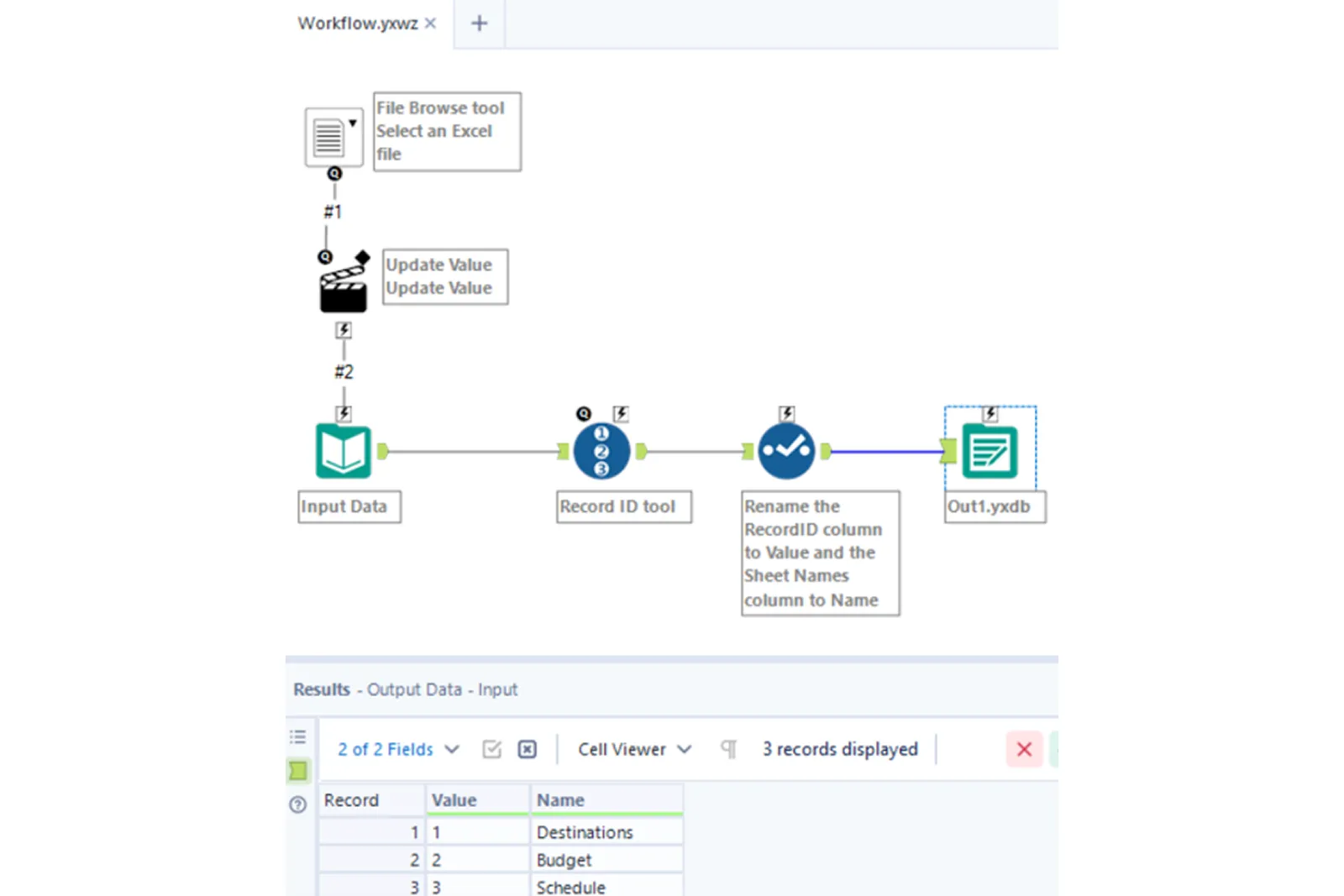
The result is written to a YXDB file (e.g., Out1.yxdb). This file serves as a dynamic source referenceThis file serves as a dynamic source reference for the second application's drop-down list. The result is written to a YXDB file (e.g., Out1.yxdb). for the second application's drop-down list.
In practical terms, this means: In practical terms, this means:
- - Any user running the App can browse to any Excel file
- - The sheet name drop-down list updates automatically as soon as a new file is selected
The "so what"The "so what"
Naming your intermediate files properly isn't just cosmetic. entities_reference.yxdb will save you hours of debugging six months down the line. Out1.yxdb will not.
Naming your intermediate files properly is not just cosmetic. entities_reference.yxdb will save you hours of debugging 6 months down the line. Out1.yxdb will not.
5. Application 2 — Populating the drop-down list5. What concretely changes for business4. Agentic AI / Agentic AI
The second application reads the Out1.yxdb file created by App 1 and uses it to populate a drop-down list. The second application reads the Out1.yxdb file created by App 1 and uses it to populate a dropdown list.
Step 5 — Read the YXDB fileStep 5 — Read the YXDB file
Add an Input DataInput Data tool to read Out1.yxdb. The file must contain two required fields: Add an tool to read Out1.yxdb. The file must contain two required fields:
- - Name- Name : the label displayed to the user
- - Value- Value : the internal value used by the App
Step 6 — Configure the List Box toolStep 6 — Configure the List Box tool
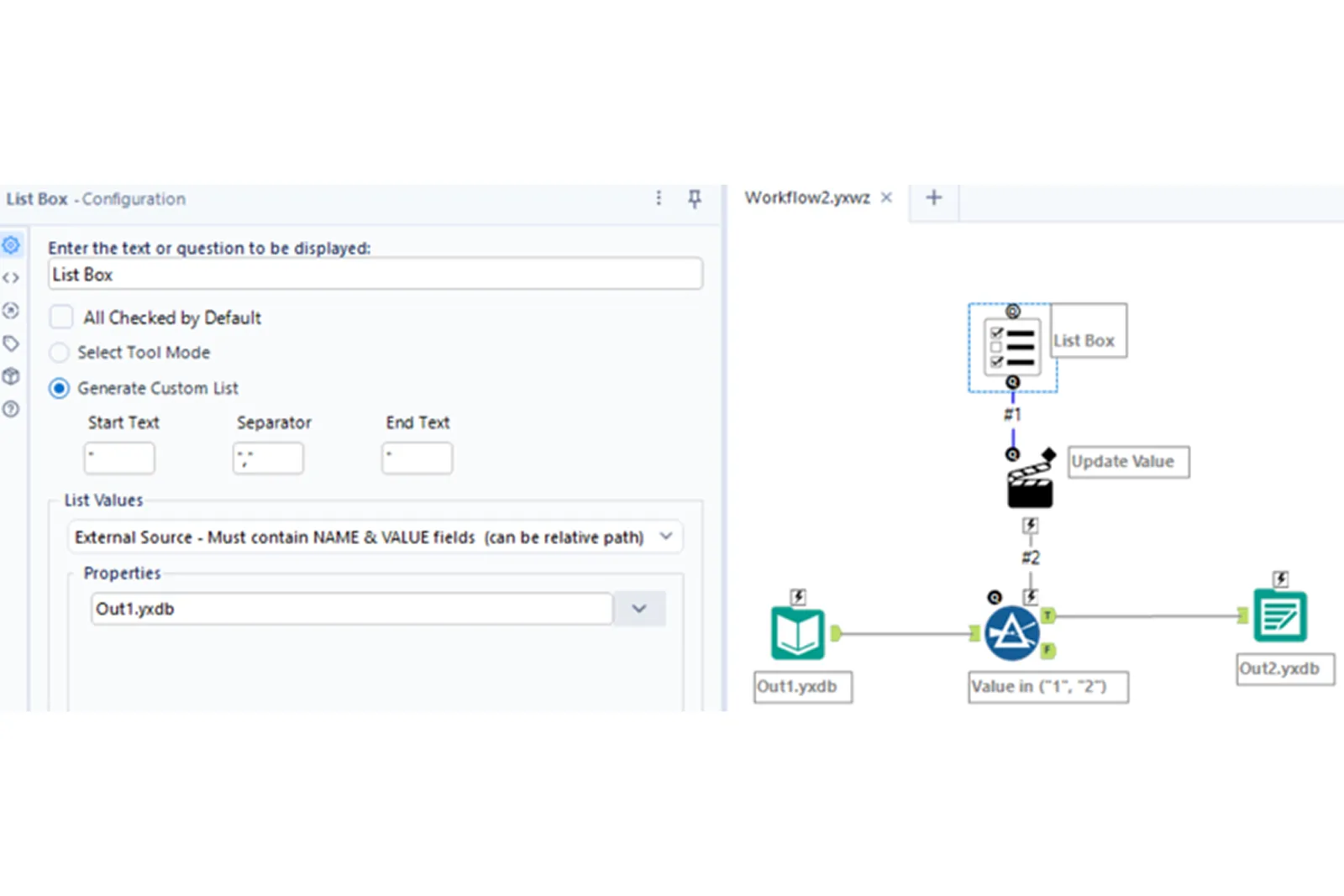
Add a List BoxList Box tool to the workflow. In its configuration: Add a tool to the workflow. In its configuration:
- - Select Generate Custom ListGenerate Custom List
- - Set: Start Text → ", Separator → ",", End Text → "
-
This formatting ensures that the selected values are returned as a properly delimited string, ready for use in a SQL clause or filter expression.This formatting ensures that the selected values are returned as a properly delimited string, ready for use in a SQL clause or filter expression.
Step 7 — Define the external source (the critical step)Step 7 — Define the external source (the critical step)
In the List ValuesList Values tab: In the tab:
- - Select External Source – Must contain Name & Value fields (can be relative path)External Source – Must contain Name & Value fields (can be relative path)
-
In the PropertiesProperties sub-tab: In the sub-tab:
- - Reference the Out1.yxdb file using a relative pathrelative path (mandatory if the App is running on Alteryx Server)
-
From this point on, the dropdown list dynamically reads its values from the YXDB generated by Application 1.From this point on, the dropdown list dynamically reads its values from the YXDB generated by Application 1.
Step 8 — Configure the Filter toolStep 8 — Configure the Filter tool
Add a FilterFilter tool to the workflow. It is configured to keep only the rows where the Value field matches the user's selections. Add a tool to the workflow. It is configured to keep only the rows where the Value field matches the user's selections.
The filter expression uses a placeholderplaceholder condition, such as: The filter expression uses a condition, such as:
Value IN (...) Value IN (...)
At this stage, the expression is static. It will be updated dynamically at runtime by the Action tool. At this stage, the expression is static. It will be updated dynamically at runtime by the Action tool.
Step 9 — Configure the Action toolStep 9 — Configure the Action tool
- - Connect a tool ActionAction to the List Box tool
- - Connect it to the Filter tool as well
- - Type: Update Value (Default)Update Value (Default)
-
At runtime: At runtime:
- - The Action tool replaces the placeholder expression in the Filter
- - The replacement value comes from the user's selection in the List Box
-
This is what makes the App truly interactive: the workflow now only filters based on the sheets actually selected by the user. This is what makes the App truly interactive: the workflow now filters only on the sheets actually selected by the user.
The "so what"The "so what"
Take the time to fully grasp the role of the Action tool—it is THE componentTHE component that makes an Analytic App truly interactive. Without it, you just have a workflow with nice-looking but inert menus.
Take the time to fully grasp the role of the Action tool — it is that makes an Analytic App truly interactive. Without it, you just have a workflow with nice-looking but inert menus.

6. Why filter by Value instead of Name6. A real-world example: the AI & Credit Masterclass on June 23, 20265. Orchestrator
When configuring a dynamic dropdown list in an Alteryx Analytic App, the external source must provide two fieldstwo fields: Name and Value. Both are required, but their roles are fundamentally different. Understanding this distinction is key to understanding why you always filter by Value. When configuring a dynamic dropdown list in an Alteryx Analytic App, the external source must provide : Name and Value. Both are required, but their roles are fundamentally different. Understanding this distinction is key to understanding why you always filter on Value.
Name — display-only fieldName — display-only field
- - Represents the label displayed to the user in the dropdown list
- - Designed for readability and usability
- - Can contain: spaces, special characters, long descriptions, accents
- - Not suitable for technical operations- Not suitable for technical operations as a filter or parameter substitution
-
Value — technical and operational fieldValue — technical and operational field
- - Represents the value actually passed to the workflow when the user makes a selection
- - This is the field used by the Action tool to replace expressions at runtime
- - Must be stable, unique, and easy to handle programmaticallystable, unique, easy to manipulate programmatically
-
Filtering by Value guarantees three thingsFiltering on Value guarantees three things: :
- - Consistent behavior, even if labels change (renaming an entity in the front end does not impact your workflow)
- - Cleaner expressions, especially when multiple values are selected
- - Fewer issues with quotation marks, spaces, and special characters
-
The "so what"The "so what"
Take 10 extra minutes during design to properly separate Name and Value. This will save you hours of debugging when a user adds an accented character to an entity name—which, in a French environment, happens all the time.
Take 10 extra minutes during design to properly separate Name and Value. This will save you hours of debugging when a user adds an accented character to an entity name—which, in a French environment, happens all the time.
7. Three best practices to apply without exception7. Three best practices to apply without exception
1. Always use relative paths1. Always use relative paths
Otherwise, your application will not work on Alteryx Server. The absolute path C:\Users\mouna\Documents\... from your dev machine does not exist on the server. Result: the app crashes in production.
Otherwise, your application won't work on Alteryx Server. The absolute path C:\Users\mouna\Documents\... from your dev machine doesn't exist on the server. Result: App crashes in production.
2. Use explicit names for your intermediate files2. Use explicit names for your intermediate files
entities_reference.yxdb instead of Out1.yxdb. You will thank yourself in six months.
entities_reference.yxdb instead of Out1.yxdb. You will thank yourself in six months.
3. Document the refresh logic3. Document the refresh logic
Where and when is the YXDB regenerated? Manually by the user? Automatically every night via a Scheduled Workflow on Server? This information must live somewhere—in a workflow comment, technical documentation, or a README. Without it, the next person to take over the project will be lost.
Where and when is the YXDB regenerated? Manually by the user? Automatically every night via a Scheduled Workflow on Server? This information needs to live somewhere—in a workflow comment, technical documentation, or a README. Without it, the next person to take over the project will be lost.
8. Key Takeaways7. Beyond prototypes, a transformation roadmapAn expanding AI glossary
If your dropdown list values depend on data that is subject to change: If your dropdown values depend on data that is subject to change:
- - Avoid static lists- Avoid static lists — they create maintenance debt that always explodes at the worst possible time
- - Use a dynamic, data-driven approach- Use a dynamic, data-driven approach
- - Consider chained applications- Consider chained apps when the list depends on user input (such as file selection)
- - Always filter by Value, never by Name- Always filter by Value, never by Name
- - Relative paths, explicit names, documented refresh logic- Relative paths, explicit names, documented refresh logic — non-negotiable for an app that needs to run in production
-
This methodology significantly reduces maintenance. Expect to spend 30 to 45 minutes more30 to 45 minutes more on the dynamic version — an investment that pays for itself as soon as your data evolves. This methodology significantly reduces maintenance. Expect to spend on the dynamic version — an investment that pays for itself the moment your data changes.
If you would like to train your teams on best practices for designing Alteryx Analytic Apps, our If you would like to train your teams on best practices for designing Alteryx Analytic Apps, our Prime ElevatePrime Elevate program covers these topics in depth — program covers these topics in depth — let's discuss it togetherlet's discuss it together..


We will get back to you as soon as possible.
Please try again or contact us at contact@primeanalytics.fr.